

Today
Start something
Dashboard
Job board
Every repair order on the system that hasn't been written up yet, and where it is up to. Add one here as soon as it is raised, or it appears when a technician opens it. Press a row to see who worked on it and write it up.
Recent jobs
Tech translation
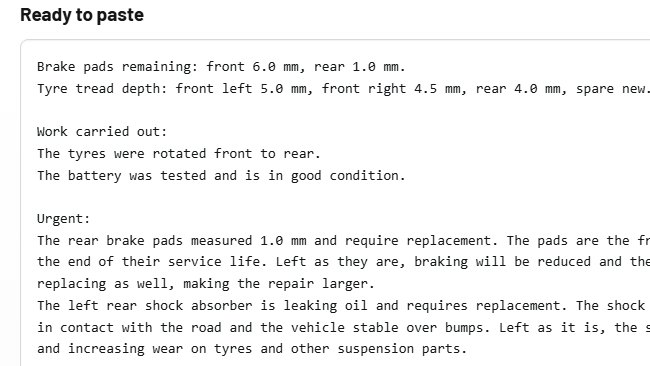
Type or paste the notes as the technician wrote them, however rough, then press Translate (or Ctrl + Enter). Press a job template to drop in the notes that kind of job always starts with, then add what the technician wrote. To make a template, type its notes in the box, give it a name and press Save notes as a template. What you are working on stays on this PC until you press Clear for the next job; nothing typed here is kept on the server, apart from the wording you use, which goes into the wording library below. Stories technicians send from the workshop are kept against the RO number for 90 days.
Always on the story
Work your workshop does on every vehicle. One item per line, shorthand is fine: each is written into every story as a full sentence, after the technician's own work. Saved for everyone at your workshop when you press Save or Translate.
Wording library
Open the library
Every routine line and every fault the AI words is kept here once someone has used it: a technician sent the story or an adviser copied it with that wording unchanged. A fault is kept with the side of the vehicle left blank, so "LHF CV boot split" also covers the right front next time. When every remark in a set of notes is already here, the story is written straight from the library and the AI is not used. When some are new, the AI writes only those. Change a sentence to have it worded your way from then on, add your own, or remove one.
Faults
Routine work
Extra work
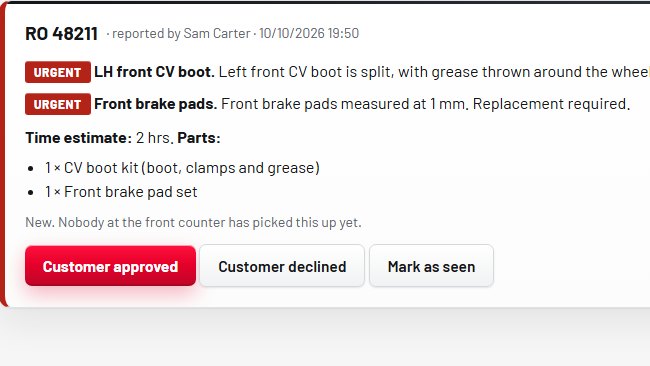
When a technician finds something that needs the customer's go-ahead, they report it from their phone or tablet. If you have a parts login, parts price it and check availability first, then send it on to you. Call the customer, then record whether the work was approved or declined. The technician and parts both see your answer on their screens. This page checks for new reports every half minute.
Collection board
Add a vehicle to the board
A time with no am or pm, such as 3:30, is read as the afternoon from 1 to 6. The day is today unless you type another.
Parts
Warranty helper
Open a warranty job
Enter the number the job is on. The first time a number is used a new claim is started for it.
Claims
Add the manufacturer's documents
Warranty policy manuals, claim procedures, nature and cause code lists, labour time guides and bulletins. The helper reads them so the evidence list, the codes, the labour times and the clerk's steps come from the manufacturer's own pages, each with a link back to the page. PDF, Excel (.xlsx), Word (.docx), CSV or text, up to 40 MB each.
Only people logged into your account can open these. When a claim is prepared, text from the few pages that match it is sent to the AI service to be read. Check your dealer agreement allows these documents to be kept outside the manufacturer's own systems before adding them.
Your documents
Time limits for each make
These drive the countdown on each claim and the timer on old parts. Type them in from the manufacturer's warranty manual, or press Find them in the manual to have them looked up in the documents above, then check the page before you save.
Search the documents
My jobs
Open an RO
New job
1Vehicle and invoice number
No customer names or phone numbers are kept here. Look the customer up in your own system by the invoice number.
2Job lines
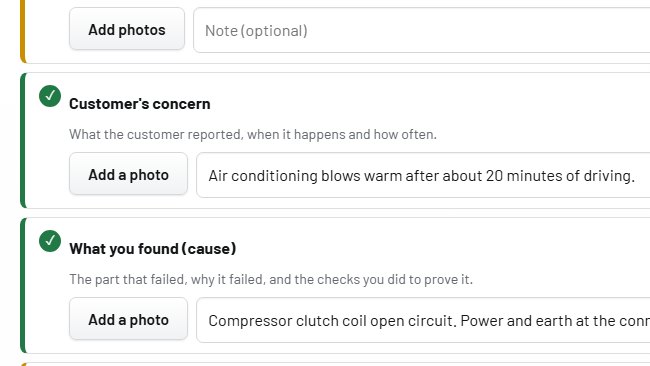
One line for each thing the vehicle is in for: a service, a customer concern, a repair. Technician notes and the wording are kept against each line.
Scheduled service checklist
3Technician notes
Follow-ups
Past jobs
Quotes
Invoices
Repair times
When a technician clocks well over these, the job is flagged so the service advisor knows to ask why. These are starter figures. Change them to suit your workshop.
Account
Your licence
Email alerts
Shared wording library
Switched off, your account keeps and uses only its own wording.
Activity
Have a licence key?
Quotes
Your labour rate prices the labour on every new quote. Your own business details print at the top. All prices are entered before GST.
Invoice wording format
Choose the program you paste the wording into, so it is laid out to suit. These layouts are starting points: paste a job into your system, then adjust the line width and capitals here until it sits correctly.
Staff logins
Give each person their own login. Technicians log in by scanning their own QR code, and can only open ROs and add notes. A parts login sees only the parts queue: extra work technicians have reported, waiting for part prices and availability. Once you have a parts login, technicians' reports go to parts first and reach the service advisers when parts send them on. A service advisor can do everything except manage logins, billing, the format and the data download.
Workshop PC
One shared PC in the workshop that every technician can use. Open the link below on that PC and leave it open. A technician types their PIN, enters the RO number and types the story for the job. It is worded on the spot, the technician sees how it reads, and it is waiting on the Tech translation page when a service adviser opens that RO. Give each technician a PIN in the Staff logins list above. The PC goes back to the PIN screen when they press Finished, or after three minutes without a key press.
Your data
Download every job, finding, follow-up and repair time as spreadsheets in one zip file. The records are yours.
Download my data